
Usage#
This page describes how to use Power Interview during a live interview session, including transcription, AI suggestions, code assistance, stealth mode, and window management.
Starting a Session#
- Launch Power Interview.
- Review configuration and settings to ensure your profile is complete and devices are set up correctly.
- Click the Start button to activate transcription and AI assistance.
Once started, the app begins capturing audio from your configured microphone (your voice) and the system audio loopback (the interviewer's voice). Both channels are streamed for real-time transcription and displayed in the transcript panel.
To stop the session at any time, click Stop in the UI or press Ctrl+Shift+Q from any window (this also exits stealth mode if active).
| Main UI during active session | Main UI during active session - Stealth Mode |
|---|---|
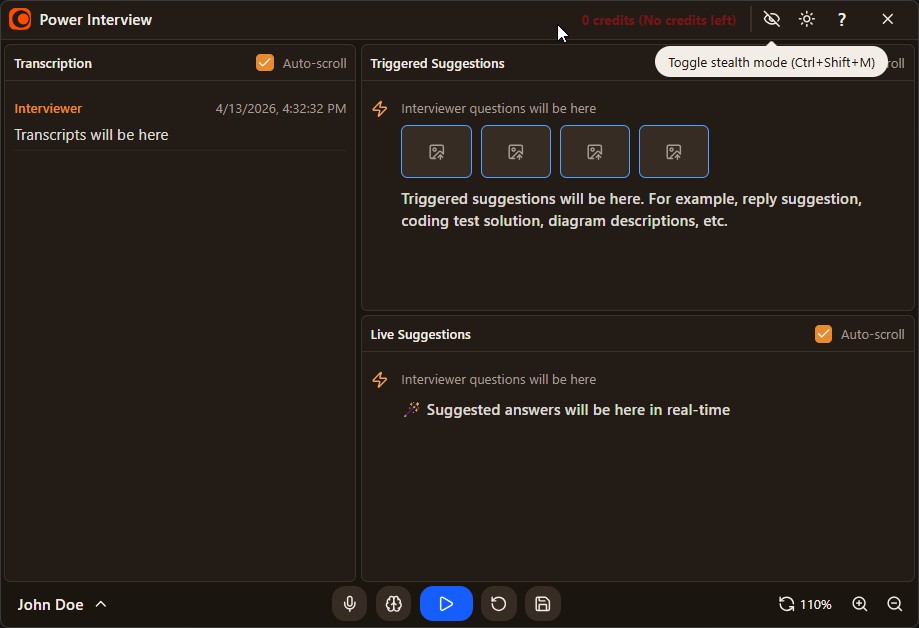 | 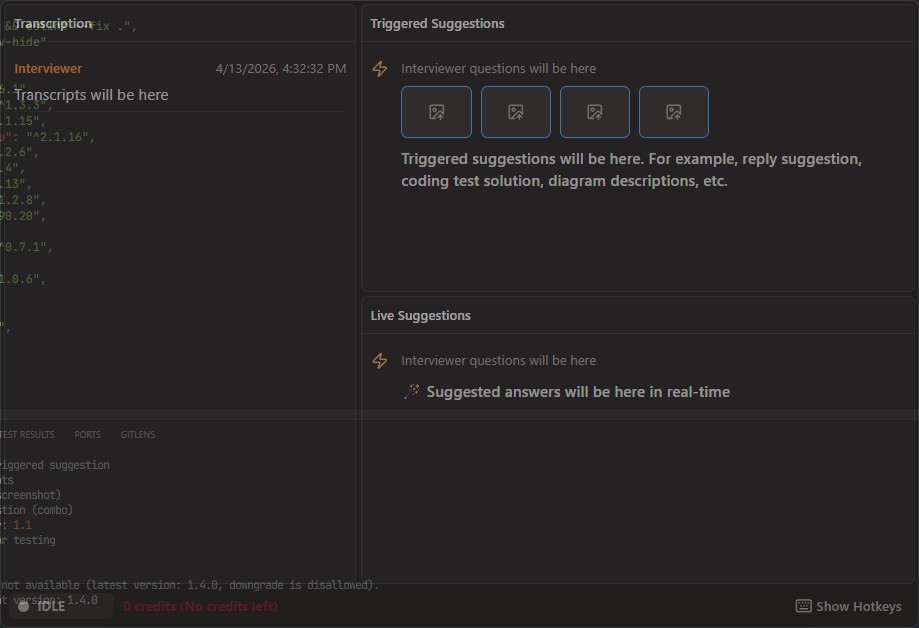 |
Transcription#
How It Works#
- Your voice is captured through your selected physical microphone.
- The interviewer's voice is captured automatically via system audio loopback (whatever is playing through your speakers from the video call). No additional device configuration is needed.
- Both streams are sent to the transcription service and returned as live transcription.
- Each line is labeled by speaker name: your configured name or "Interviewer", with a timestamp.
AI Reply Suggestions#
Reply suggestions are generated based on the current transcript, your profile (name, CV), and the job context you configured.
Getting a Suggestion#
Suggestions are triggered automatically as the AI determines a response is useful, or you can request one manually through the UI. The suggestion streams into the reply panel word by word in real time.
Scrolling Suggestions#
You can use the keyboard to scroll through reply suggestion content without leaving your video call window (use J/K for line‑by‑line movement or L to jump to the end):
| Action | Shortcut |
|---|---|
| Scroll up | Ctrl+Shift+K |
| Scroll down | Ctrl+Shift+J |
| Scroll to end | Ctrl+Shift+L |
AI Code Suggestions#
For technical interviews with coding problems, Power Interview can analyze your screen and suggest solutions.
Workflow#
- When a coding problem appears on screen (in your browser, IDE, or shared screen), press
Ctrl+Shift+F9to take a screenshot. You can also skip the queue and automatically submit in one step by usingCtrl+Shift+F12(capture + submit). - You can capture up to 4 screenshots to provide more context (e.g., multiple parts of the problem due overflowed content or different tabs).
- Press
Ctrl+Shift+F10to submit the screenshots for analysis (not needed if you used F12). - The AI processes the images and streams a suggested solution with syntax-highlighted code into the code suggestion panel.
- To clear the captured screenshots (e.g., mistakes), press
Ctrl+Shift+F11to clear all captured screenshots.
Scrolling Code Suggestions#
You can also jump to the end of the code panel using the third shortcut (O).
| Action | Shortcut |
|---|---|
| Scroll up | Ctrl+Shift+I |
| Scroll down | Ctrl+Shift+U |
| Scroll to end | Ctrl+Shift+O |
Stealth Mode#
The Power Interview window is always hidden from screen capture and screen share - interviewers cannot see it at any time, regardless of whether stealth mode is on or off.
Stealth mode is about focus control. When active, the window will not steal focus from your coding challenge, IDE, or video call. You stay in full control of your keyboard and mouse at all times.
Activating Stealth Mode#
Press Ctrl+Shift+M to toggle stealth mode on or off.
When active, the window collapses to a minimal status bar showing running state, credit balance, and active hotkeys.
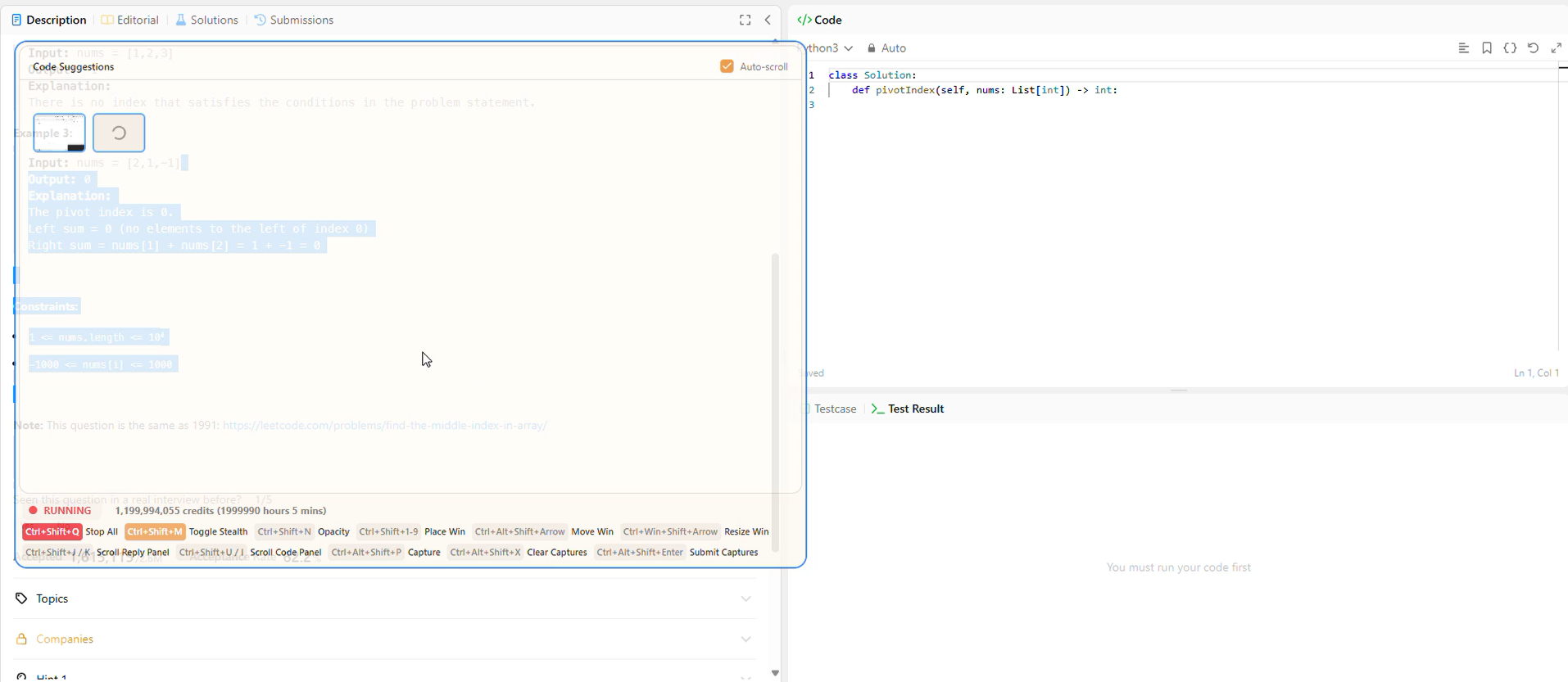
Opacity Toggle#
Press Ctrl+Shift+N to toggle a low-opacity overlay, letting you glance at suggestions through a semi-transparent window without switching focus away from your active window.
Window Management#
Because you cannot use the mouse to interact with Power Interview while focused on your interview, all window controls are available via keyboard shortcuts.
Positioning the Window#
Use a numpad-style layout to snap the window to any screen position:
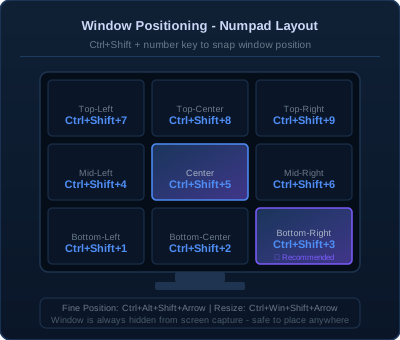
Fine-Tuning Position and Size#
| Action | Shortcut |
|---|---|
| Move window | Ctrl+Alt+Shift+Arrow |
| Resize window | Ctrl+Win+Shift+Arrow |
Profile & Settings#
Access your settings by clicking the profile icon in the app's control panel.
Profile Settings#
| Field | Description |
|---|---|
| Name | Your name (required) - used as the speaker label and in AI responses |
| Profile / CV | Your resume, bio, or portfolio content (required) |
| Context | Job description or role requirements for the interview (recommended) |
Device Settings#
| Setting | Where to configure | Description |
|---|---|---|
| Microphone | Audio Options (mic icon) | Physical microphone for your voice |
Account Menu#
Click your name/avatar in the bottom-left of the control panel to access:
- Configuration - open the profile/settings dialog
- Change Password - update your account password
- Buy Credits - go to the payments page
- Sign Out - log out of your account
Session Tools#
The control panel toolbar includes two utility buttons (at the right edge):
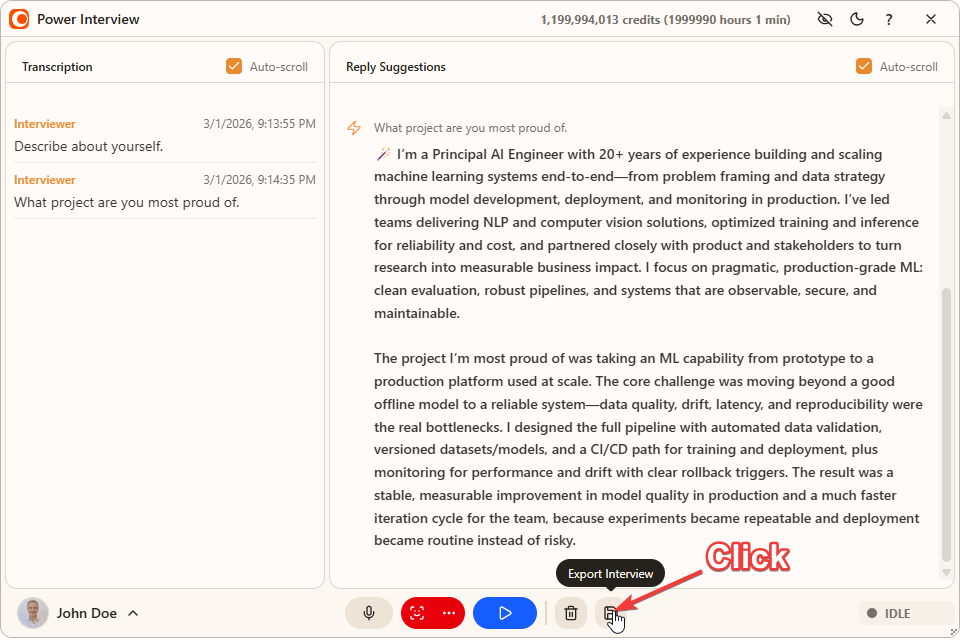
Export Interview#
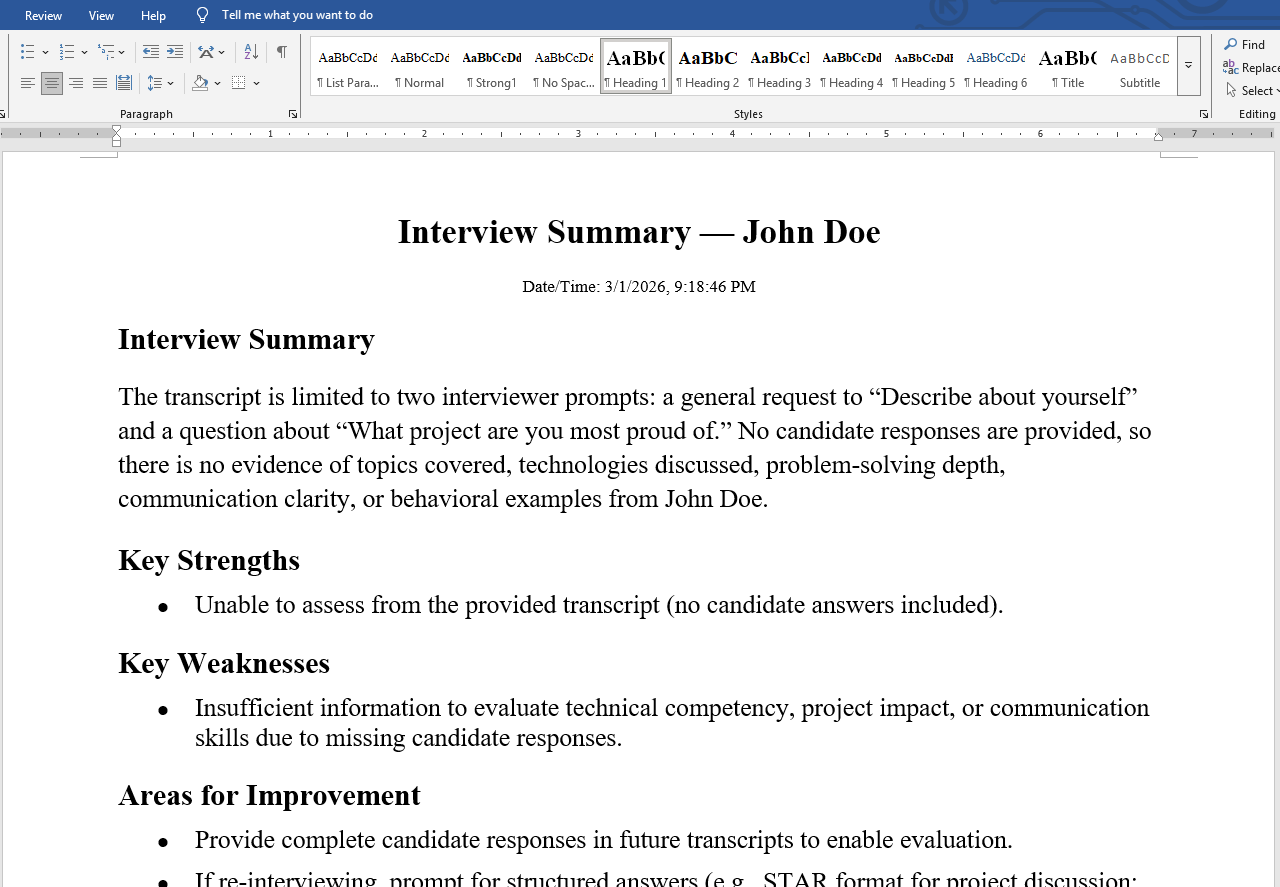
The Export button generates a Word document (.docx) containing:
- An AI-generated summary of the interview
- Full timestamped transcript with speaker labels
- All reply suggestions with the questions that triggered them
A save dialog appears so you can choose where to save the file.
 |  |
|---|
Export Example - generated interview report in Word
Clear Session#
The Clear button removes all transcripts, reply suggestions, and code suggestions from the current session. This does not affect your saved profile, credentials, or settings.
Credits & Payments#
Credits are consumed while the assistant is running - covering AI reply suggestions and transcription. Your remaining credit balance is shown live in the status bar (stealth mode).
To buy credits:
- Click your name/avatar in the control panel.
- Select Buy Credits.
- Choose a credit package, complete payment, and your balance updates automatically.
You can also view your payment history and check pending payment status from the same page.
Complete Hotkey Reference#
| Action | Shortcut |
|---|---|
| Stop all & exit stealth | Ctrl+Shift+Q |
| Toggle stealth mode | Ctrl+Shift+M |
| Toggle window opacity | Ctrl+Shift+N |
| Position window (numpad) | Ctrl+Shift+1 – Ctrl+Shift+9 |
| Move window | Ctrl+Alt+Shift+Arrow |
| Resize window | Ctrl+Win+Shift+Arrow |
| Zoom in/out or reset zoom | Ctrl+Shift+[=, -, 0] |
| Scroll live suggestions panel (down/up/end) | Ctrl+Shift+[J, K, L] |
| Scroll triggered suggestions panel | Ctrl+Shift+[U, I, O] |
| Capture screen | Ctrl+Shift+F9 |
| Clear captures | Ctrl+Shift+F10 |
| Trigger without captures | Ctrl+Shift+F11 |
| Trigger with captures | Ctrl+Shift+F12 |
The canonical list of hotkeys is maintained in
src/config/hotkeys.tsfor the application; update both the code and documentation when making changes.